
Showing posts with label Windows 8. Show all posts
Showing posts with label Windows 8. Show all posts
Sunday, 23 June 2013
0
Sunday, 23 June 2013
read more
How to Use Windows 8 Performance Monitor to Analyse Your System Performance
There are many factors that can affect the performance of Windows 8. Using Windows Performance Monitor you can examine how programs you run affect your computer's performance, both in real time and by collecting log data for later analysis.

Windows Performance Monitor is a Microsoft Management Console (MMC) snap-in that provides tools for analyzing system performance. From a single console, you can monitor application and hardware performance in real time, customize what data you want to collect in logs, define thresholds for alerts and automatic actions, generate reports, and view past performance data in a variety of ways. In this post, I'll show you how you can use Windows Performance Monitor effectively in Windows 8.
To launch Windows Performance Monitor
There are various ways to open Performance Monitor in Windows 8. Some of the methods are given below :
Method 1 : Go to Run (Windows Key + R) and type
Method 2 : Go to Settings Search (Windows Key + W) and search for "performance" and select Performance information and tools. Under Advanced Tools, select "Open Performance Monitor"

Using Performance Monitor
Performance Monitor is a simple yet powerful visualization tool for viewing performance data, both in real time and from log files. With it, you can examine performance data in a graph, histogram, or report.

The first screen of Performance Monitors displays some technical stats about the CPU and memory. Move to Performance Monitor under Monitoring Tools in order to set your own data counters. By default, CPU counter is shown in real-time.

You can add more counters by pressing the plus button( ). The performance counters are categorized into several action categories, making it easier for the user to find the exact counter he’s looking for. For example, if you want to monitor your laptop power meter stats like power and power budget you can expand the "Power Meter" category, select the counters you want to monitor and click the "Add" button.
If you are unsure of which counters to monitors, a few pre-defined system monitors are also available. You can go to "Data Collector Sets -> System" and select the collector set of your choice, right click it and select Start to start the monitoring process.

The default system monitors will run for 60 seconds only. If you want to monitor certain aspects of your computer regularly, you can create a new Data Collector Set by right clicking "User Defined" under Data Collector Sets and create a new set. Go to its properties to add new counters and set a schedule for running this performance counter.

Uses of Performance Monitor
1. Generating System Health Reports
To generate system health report, open Performance monitor and go to "Data Collector Sets -> System -> Right click System Diagnostics" and select start. This will start a 60 second monitoring. When the performance monitor has completed its process, head towards Reports -> System -> System Diagnostics and select the appropriate report. In the right hand pane, you can view detailed health reports about each hardware and software component of the computer.
2. Analyzing System Performance
You can use the Performance Monitor to analyze system performance. The system performance monitor is pre-defined data collector set and can be run under "Data Collector Sets -> System -> System Performance". This will also generate a 60 second performance report. If you want to run the performance reports for much longer interval of time, you will have to create your own custom data collector set and set its schedule in Properties.
3. Checking Reliability of the System
You can also use Performance Monitor to check the reliability of the system by running the following command:
By following this tutorial, you will be able to monitor the performance of your system properly and identify the factors that bog down your system. Like Us On Facebook and stay updated with latest tips and tricks.

Windows Performance Monitor is a Microsoft Management Console (MMC) snap-in that provides tools for analyzing system performance. From a single console, you can monitor application and hardware performance in real time, customize what data you want to collect in logs, define thresholds for alerts and automatic actions, generate reports, and view past performance data in a variety of ways. In this post, I'll show you how you can use Windows Performance Monitor effectively in Windows 8.
To launch Windows Performance Monitor
There are various ways to open Performance Monitor in Windows 8. Some of the methods are given below :
Method 1 : Go to Run (Windows Key + R) and type
perfmon. This will open Performance Monitor immediately.
Method 2 : Go to Settings Search (Windows Key + W) and search for "performance" and select Performance information and tools. Under Advanced Tools, select "Open Performance Monitor"

Using Performance Monitor
Performance Monitor is a simple yet powerful visualization tool for viewing performance data, both in real time and from log files. With it, you can examine performance data in a graph, histogram, or report.

The first screen of Performance Monitors displays some technical stats about the CPU and memory. Move to Performance Monitor under Monitoring Tools in order to set your own data counters. By default, CPU counter is shown in real-time.

You can add more counters by pressing the plus button(
). The performance counters are categorized into several action categories, making it easier for the user to find the exact counter he’s looking for. For example, if you want to monitor your laptop power meter stats like power and power budget you can expand the "Power Meter" category, select the counters you want to monitor and click the "Add" button.
If you are unsure of which counters to monitors, a few pre-defined system monitors are also available. You can go to "Data Collector Sets -> System" and select the collector set of your choice, right click it and select Start to start the monitoring process.

The default system monitors will run for 60 seconds only. If you want to monitor certain aspects of your computer regularly, you can create a new Data Collector Set by right clicking "User Defined" under Data Collector Sets and create a new set. Go to its properties to add new counters and set a schedule for running this performance counter.

Uses of Performance Monitor
1. Generating System Health Reports
To generate system health report, open Performance monitor and go to "Data Collector Sets -> System -> Right click System Diagnostics" and select start. This will start a 60 second monitoring. When the performance monitor has completed its process, head towards Reports -> System -> System Diagnostics and select the appropriate report. In the right hand pane, you can view detailed health reports about each hardware and software component of the computer.
2. Analyzing System Performance
You can use the Performance Monitor to analyze system performance. The system performance monitor is pre-defined data collector set and can be run under "Data Collector Sets -> System -> System Performance". This will also generate a 60 second performance report. If you want to run the performance reports for much longer interval of time, you will have to create your own custom data collector set and set its schedule in Properties.
3. Checking Reliability of the System
You can also use Performance Monitor to check the reliability of the system by running the following command:
perfmon /rel. This will analyze the event logs and display information, warnings and errors in a graphical format. The overall system stability is assessed from a scale of 1 to 10.
By following this tutorial, you will be able to monitor the performance of your system properly and identify the factors that bog down your system. Like Us On Facebook and stay updated with latest tips and tricks.
Wednesday, 13 March 2013
0
Wednesday, 13 March 2013
read more
How to Integrate Google Apps with Windows 8
Google and Microsoft are the biggest rival when it comes to the latest and greatest in online technologies. It should come as no surprise to see that Google products are not integrated into the Windows 8 release. But there are a few ways to integrating Google apps into Windows 8. Google services like Gmail, Google Search, Chrome and more can all be integrated with Windows 8. Here is a tutorial by which you can easily integrate Google Apps with Microsoft.

How to Add Google Search in Windows 8


Now you can make search on Google from your Start screen in Windows 8. This app is designed to compete with Microsoft’s Bing search app.
Must See : Windows 8 Keyboard Shortcuts You Should Know
Windows 8 mode for Google Chrome
Google offers a version of Google Chrome for Windows 8. If you install Chrome and set it as your default browser, you will be able to use a Modern version of Google Chrome.

Chrome will then relaunch itself and you will be using a full screen app-like version of it. You can toggle between the two styles of Google Chrome browser – desktop mode and Windows 8 mode – using the Relaunch Chrome option in Chrome's wrench menu.
Adding Gmail into Windows 8 Mail
The Mail app included with Windows 8 supports Gmail accounts. You will be able to read your emails, send emails, and see new mail notifications for your Gmail account on the Mail app's live tile.


Microsoft will probably not integrate these Google apps into Windows 8 in the upcoming year, but with these cool tricks, you can get the most from Google in Windows 8 OS.
Also See :
Do you use Google Apps in Windows 8? Please let me know your experiences in the comments below. Like Us On Facebook and stay updated with latest tips and tricks.

How to Add Google Search in Windows 8
- Open Windows Store and Search for Google Search
- Click Install
- Once Installed Open Google Search
Now you can make search on Google from your Start screen in Windows 8. This app is designed to compete with Microsoft’s Bing search app.
Must See : Windows 8 Keyboard Shortcuts You Should Know
Windows 8 mode for Google Chrome
Google offers a version of Google Chrome for Windows 8. If you install Chrome and set it as your default browser, you will be able to use a Modern version of Google Chrome.
- Open Google Chrome
- Click On Wrench Menu >> Relaunch Chrome in Windows 8 mode

Chrome will then relaunch itself and you will be using a full screen app-like version of it. You can toggle between the two styles of Google Chrome browser – desktop mode and Windows 8 mode – using the Relaunch Chrome option in Chrome's wrench menu.
Adding Gmail into Windows 8 Mail
The Mail app included with Windows 8 supports Gmail accounts. You will be able to read your emails, send emails, and see new mail notifications for your Gmail account on the Mail app's live tile.
- Open Mail from the "Start Screen"
- Press Windows+L to open the Mail Settings, and select Accounts

- Select the Google Account and enter your Google account's email address and password
- After entering your Gmail login details, Click on "Connect"
Microsoft will probably not integrate these Google apps into Windows 8 in the upcoming year, but with these cool tricks, you can get the most from Google in Windows 8 OS.
Also See :
- Top 5 Antivirus for Windows 8 - Free Download
- How to Refresh or Reset Windows 8 PC
- Dual Boot Windows 7 and Windows 8 {Installation Guide}
Do you use Google Apps in Windows 8? Please let me know your experiences in the comments below. Like Us On Facebook and stay updated with latest tips and tricks.
Thursday, 28 February 2013
0
Thursday, 28 February 2013
read more
Top 5 Antivirus For Windows 8 - Free Download
Windows 8 is the latest operating system by Microsoft comes with lots of new features and improved performance. If you are running Windows 8, you know that it includes the best security features native to any version of Windows thus far. Microsoft includes Windows Defender with Windows 8 to improve protection for those who will never get around to installing third-party antivirus for Windows 8. However, according to performance test results from respected independent software labs, Defender is no match for the best antivirus for Windows 8 products.
Must See : Windows 8 Keyboard Shortcuts You Must Know
To secure your Windows 8 OS against any form of threat, malware etc you need to have an active Antivirus Software. Presently, there are hundreds of antivirus programs for Windows 8 available in market, some of them are free while some are paid. So, today I'm going to share Top 5 Antivirus Software for Windows 8 that are free to download.
1. Bitdefender Antivirus Plus

Bitdefender Antivirus Plus solutions provide state-of-the-art, proactive protection from e-threats, including online banking attacks. Bitdefender Antivirus Plus is Windows 8 Certified and is the best antivirus software. Bitdefender Antivirus Plus is famous for its faster detection and removal. Bitdefender 2013 takes “scheduled scanning” to a whole new level, as the scanning only takes place when your system is idle.
Download : [Bitdefender Antivirus Plus 2013]
2. Kaspersky

Kaspersky is another awesome antivirus software for Windows 8. Kaspersky anti-virus protects you from the Phishing and Malware sites that you wouldn't otherwise know were attempting to steal from you.
At the same time, the Kaspersky Security Network allows your computer to report when it discovers a threat that hasn't been seen before. Kaspersky Antivirus features include :
Download : [Kaspersky Antivirus]
3. AVG Antivirus
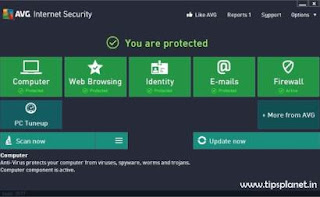
AVG's updates for 2013 look to the future while struggling to overcome the problems of the past. There's a new interface optimized for Windows 8 that really does make the suite easier to use, and the suite once again tackles its lengthy installation procedure.
AVG Anti-Virus Free Edition is trusted antivirus and antispyware protection for Windows available to download for free. In addition, the new included LinkScanner Active Surf-Shield checks web pages for threats at the only time that matters - when you're about to click that link.
Download : [AVG Antivirus Free Edition x64-bit] & [AVG Antivirus Free Editon x32-bit]
4. Avast Antivirus

avast! Free Antivirus represents the best free antivirus protection currently available on the market. This edition is FREE OF CHARGE for non-commercial & home use. Its features include:
Download : [avast! Antivirus Free Edition]
5. Windows Defender

Windows Defender is software that helps protect your computer against pop-ups, slow performance, and security threats caused by spyware and other unwanted software by detecting and removing known spyware from your computer. Windows Defender features Real-Time Protection, a monitoring system that recommends actions against spyware when it's detected, minimizes interruptions, and helps you stay productive.
Download : [Windows Defender]
Note : Download Link are added on 1-03-2013 :)
Like Us On Facebook and stay updated with latest tips and tricks.
Must See : Windows 8 Keyboard Shortcuts You Must Know
To secure your Windows 8 OS against any form of threat, malware etc you need to have an active Antivirus Software. Presently, there are hundreds of antivirus programs for Windows 8 available in market, some of them are free while some are paid. So, today I'm going to share Top 5 Antivirus Software for Windows 8 that are free to download.
1. Bitdefender Antivirus Plus

Bitdefender Antivirus Plus solutions provide state-of-the-art, proactive protection from e-threats, including online banking attacks. Bitdefender Antivirus Plus is Windows 8 Certified and is the best antivirus software. Bitdefender Antivirus Plus is famous for its faster detection and removal. Bitdefender 2013 takes “scheduled scanning” to a whole new level, as the scanning only takes place when your system is idle.
Download : [Bitdefender Antivirus Plus 2013]
2. Kaspersky

Kaspersky is another awesome antivirus software for Windows 8. Kaspersky anti-virus protects you from the Phishing and Malware sites that you wouldn't otherwise know were attempting to steal from you.
At the same time, the Kaspersky Security Network allows your computer to report when it discovers a threat that hasn't been seen before. Kaspersky Antivirus features include :
- Protects from viruses, Trojans, worms, spyware, adware
- Scans files, email, and internet traffic
- Analyzes and closes Internet Explorer vulnerabilities
- Blocks all types of keyloggers
- Automatic Database Updates
Download : [Kaspersky Antivirus]
3. AVG Antivirus

AVG's updates for 2013 look to the future while struggling to overcome the problems of the past. There's a new interface optimized for Windows 8 that really does make the suite easier to use, and the suite once again tackles its lengthy installation procedure.
AVG Anti-Virus Free Edition is trusted antivirus and antispyware protection for Windows available to download for free. In addition, the new included LinkScanner Active Surf-Shield checks web pages for threats at the only time that matters - when you're about to click that link.
Download : [AVG Antivirus Free Edition x64-bit] & [AVG Antivirus Free Editon x32-bit]
4. Avast Antivirus
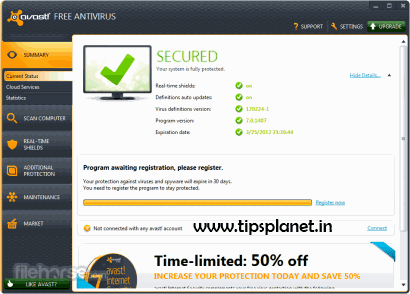
avast! Free Antivirus represents the best free antivirus protection currently available on the market. This edition is FREE OF CHARGE for non-commercial & home use. Its features include:
- Anti-spyware built-in
- Web Shield
- Strong self-protection
Download : [avast! Antivirus Free Edition]
5. Windows Defender
Windows Defender is software that helps protect your computer against pop-ups, slow performance, and security threats caused by spyware and other unwanted software by detecting and removing known spyware from your computer. Windows Defender features Real-Time Protection, a monitoring system that recommends actions against spyware when it's detected, minimizes interruptions, and helps you stay productive.
Download : [Windows Defender]
Note : Download Link are added on 1-03-2013 :)
Like Us On Facebook and stay updated with latest tips and tricks.
Monday, 4 February 2013
0
Monday, 4 February 2013
read more
Windows 8 Keyboard Shortcuts You Must Know
Windows 8 is the latest operating system by Microsoft designed for both PC and tablet users. The touchscreen users can take many advantages of Windows 8 such as the Charms Menu, Metro UI with tiles, and swipes, Microsoft has also done their part to ensure that users who prefer getting around with the keyboard would not be left out.
Must See : How to Get Google Voice Search for PC
Microsoft has integrated new keyboard shortcuts for user for more simplicity and comfort. These Windows 8 keyboard shortcuts make OS faster and easier. And as much fun as touchscreens can be, sometimes you can do more with keyboard shortcuts than you can with swipes. Besides, if you are part of the keyboard generation, shortcuts just come more naturally anyways.

Here are some must know Windows 8 Keyboard Shortcuts :
Shortcut Key Function
Windows Key + D Show Desktop
Windows Key + C Open Charms Menu
Windows Key + F Charms Menu – Search
Windows Key + H Charms Menu – Share
Windows Key + K Charms Menu – Devices
Windows Key + I Charms Menu – Settings
Windows Key + Q Search For Installed Apps
Windows Key + W Search Settings
Windows Key + Tab Cycle through open Modern UI Apps
Windows Key + Shift + Tab Cycle through open Modern UI Apps in reverse order
Windows Key + . Snaps app to the right (split screen multitasking)
Windows Key + Shift + . Snaps app to the left (split screen multitasking)
Windows Key + , Temporarily view desktop
Alt + F4 Quit Modern UI Apps
Windows Key + E Launch Windows Explorer Window
Windows Key + L Lock PC and go to lock screen
Windows Key + T Cycle through icons on taskbar (press Enter to launch app)
Windows Key + X Show Advanced Windows Settings Menu
Windows Key + E Launch Windows Explorer Window
Windows Key + Page Down Moves Start screen and apps to secondary monitor on the right
Windows Key + Page Up Moves Start screen and apps to secondary monitor on the left
Windows Key + M Minimize all Windows
Windows Key + Shift + M Restore all minimized Windows
Windows Key + R Open Run dialog box
Windows Key + Up Arrow Maximize current window
Windows Key + Down Arrow Minimize current window
Windows Key + Left Arrow Maximize current window to left side of the screen
Windows Key + Right Arrow Maximize current window to right side of the screen
Ctrl + Shift + Escape Open Task Manager
Windows Key + Print Screen Takes a Print Screen and saves it to your Pictures folder
Windows Key + Pause Break Display System Properties
Shift + Delete Permanently delete files without sending it to Recycle Bin
Windows Key + F1 Open Windows Help and Support
Windows Key + V Cycle through notifications
Windows Key + Shift + V Cycle through notifications in reverse order
Windows Key + 0 to 9 Launch/show app pinned to taskbar at indicated number
Alt + Enter Display Properties of selected item in File Explorer
Alt + Up Arrow View upper level folder of current folder in File Explorer
Alt + Right Arrow View next folder in File Explorer
Alt + Left Arrow View previous folder in File Explorer
Windows Key + P Choose secondary display modes
Windows Key + U Open Ease of Access Center
Alt + Print Screen Print Screen focused Window only
Windows Key + Spacebar Switch input language and keyboard layout
Windows Key + Shift + Spacebar Switch to previous input language and keyboard layout
Windows Key + Enter Open Narrator
Windows Key + + Zoom in using Magnifier
Windows Key + - Zoom out using Magnifier
Windows Key + Escape Exit Magnifier
Stay Tuned with for More Tips and Tricks :)
Must See : How to Get Google Voice Search for PC
Microsoft has integrated new keyboard shortcuts for user for more simplicity and comfort. These Windows 8 keyboard shortcuts make OS faster and easier. And as much fun as touchscreens can be, sometimes you can do more with keyboard shortcuts than you can with swipes. Besides, if you are part of the keyboard generation, shortcuts just come more naturally anyways.

Here are some must know Windows 8 Keyboard Shortcuts :
Shortcut Key Function
Windows Key + D Show Desktop
Windows Key + C Open Charms Menu
Windows Key + F Charms Menu – Search
Windows Key + H Charms Menu – Share
Windows Key + K Charms Menu – Devices
Windows Key + I Charms Menu – Settings
Windows Key + Q Search For Installed Apps
Windows Key + W Search Settings
Windows Key + Tab Cycle through open Modern UI Apps
Windows Key + Shift + Tab Cycle through open Modern UI Apps in reverse order
Windows Key + . Snaps app to the right (split screen multitasking)
Windows Key + Shift + . Snaps app to the left (split screen multitasking)
Windows Key + , Temporarily view desktop
Alt + F4 Quit Modern UI Apps
Windows Key + E Launch Windows Explorer Window
Windows Key + L Lock PC and go to lock screen
Windows Key + T Cycle through icons on taskbar (press Enter to launch app)
Windows Key + X Show Advanced Windows Settings Menu
Windows Key + E Launch Windows Explorer Window
Windows Key + Page Down Moves Start screen and apps to secondary monitor on the right
Windows Key + Page Up Moves Start screen and apps to secondary monitor on the left
Windows Key + M Minimize all Windows
Windows Key + Shift + M Restore all minimized Windows
Windows Key + R Open Run dialog box
Windows Key + Up Arrow Maximize current window
Windows Key + Down Arrow Minimize current window
Windows Key + Left Arrow Maximize current window to left side of the screen
Windows Key + Right Arrow Maximize current window to right side of the screen
Ctrl + Shift + Escape Open Task Manager
Windows Key + Print Screen Takes a Print Screen and saves it to your Pictures folder
Windows Key + Pause Break Display System Properties
Shift + Delete Permanently delete files without sending it to Recycle Bin
Windows Key + F1 Open Windows Help and Support
Windows Key + V Cycle through notifications
Windows Key + Shift + V Cycle through notifications in reverse order
Windows Key + 0 to 9 Launch/show app pinned to taskbar at indicated number
Alt + Enter Display Properties of selected item in File Explorer
Alt + Up Arrow View upper level folder of current folder in File Explorer
Alt + Right Arrow View next folder in File Explorer
Alt + Left Arrow View previous folder in File Explorer
Windows Key + P Choose secondary display modes
Windows Key + U Open Ease of Access Center
Alt + Print Screen Print Screen focused Window only
Windows Key + Spacebar Switch input language and keyboard layout
Windows Key + Shift + Spacebar Switch to previous input language and keyboard layout
Windows Key + Enter Open Narrator
Windows Key + + Zoom in using Magnifier
Windows Key + - Zoom out using Magnifier
Windows Key + Escape Exit Magnifier
Stay Tuned with for More Tips and Tricks :)
Sunday, 21 October 2012
0
Sunday, 21 October 2012
read more
How to Refresh or Reset Windows 8 PC
Telling you how to "refresh" or "reset" your Windows 8 PC before the operating system is even publicly available in its final release form seems odd. But if you think about it, when you buy a new Windows PC, you'll often find a lots of programs you didn't really want like utilities, demo software, game trials and more. So it's a blessing article for new PC users of the new OS which offers a way to clean out everything which is unnecessarily installed.
Also See : Dual Boot Windows 8 and Windows 7
There are actually two new Windows 8 capabilities that perform different kinds of cleanup : one refreshes the system while keeping all of your photos, music, and personal files and the other actually starts you over, returning your computer or tablet to its mint condition. The later, resetting, is also an excellent choice for when you're selling, recycling, or gifting your PC—something friends have often asked me about.
Resetting a Windows PC prior to Windows 8 had been a bit of a chore, so these new Windows 8 tools offer long-term benefits. And if you're not giving away your PC, the refresh tool is a much simpler alternative to re-installing the operating system in the traditional way.
Also See : Download Windows 8 Enterprise for 90 Days
Refresh
Both of the new Windows 8 options clean out the operating system itself, but the "Refresh" choice leaves intact your data—photos, music, videos, and documents, your new-style Windows 8 apps, and your system settings. You'll find this choice by clicking or touching the Settings charm (you display the charms with a swipe in from the left on a touch screen, or by moving the mouse pointer to either of the right corners and moving it down or up). Then choose "Change PC Settings" at the bottom.
When you're on the new-style "PC settings" page (see screenshot below), choose the General section, and scroll the right-side choices down to the eighth choice, "Refresh your PC without affecting your files."

To get started with the refreshing process, click or tap the "Get started" button below the Refresh description. You'll then see a screen like this

This provides more detail about what the operation does. A key thing to know is that the process will remove any desktop apps—only apps obtained from the Windows Store will remain. This message states that you'll be presented with a list of the removed apps on your desktop after the process. This removal makes sense, since desktop programs are the likeliest suspects for clogging your system and haven't passed through the Windows Store vetting process.
Refrence : [ThinkDigit]
Comment & Share with Friends :)
Also See : Dual Boot Windows 8 and Windows 7
There are actually two new Windows 8 capabilities that perform different kinds of cleanup : one refreshes the system while keeping all of your photos, music, and personal files and the other actually starts you over, returning your computer or tablet to its mint condition. The later, resetting, is also an excellent choice for when you're selling, recycling, or gifting your PC—something friends have often asked me about.
Resetting a Windows PC prior to Windows 8 had been a bit of a chore, so these new Windows 8 tools offer long-term benefits. And if you're not giving away your PC, the refresh tool is a much simpler alternative to re-installing the operating system in the traditional way.
Also See : Download Windows 8 Enterprise for 90 Days
Refresh
Both of the new Windows 8 options clean out the operating system itself, but the "Refresh" choice leaves intact your data—photos, music, videos, and documents, your new-style Windows 8 apps, and your system settings. You'll find this choice by clicking or touching the Settings charm (you display the charms with a swipe in from the left on a touch screen, or by moving the mouse pointer to either of the right corners and moving it down or up). Then choose "Change PC Settings" at the bottom.
When you're on the new-style "PC settings" page (see screenshot below), choose the General section, and scroll the right-side choices down to the eighth choice, "Refresh your PC without affecting your files."

To get started with the refreshing process, click or tap the "Get started" button below the Refresh description. You'll then see a screen like this

This provides more detail about what the operation does. A key thing to know is that the process will remove any desktop apps—only apps obtained from the Windows Store will remain. This message states that you'll be presented with a list of the removed apps on your desktop after the process. This removal makes sense, since desktop programs are the likeliest suspects for clogging your system and haven't passed through the Windows Store vetting process.
Refrence : [ThinkDigit]
Comment & Share with Friends :)
Thursday, 23 August 2012
0
Thursday, 23 August 2012
read more
Microsoft Opens Windows 8 Upgrade Offer
Microsoft has officially opened registration for new Windows 7 users (who purchase Windows 7 PC between June 2, 2012 – January 31, 2013) to upgrade to Windows 8. Microsoft is offering the upgrade to Windows 8 Pro for $14.99. It may be recalled that the Indian consumers are entitled to a downloadable upgrade to Windows 8 Pro for a price of just Rs. 699. This Windows 8 upgrade offer will be valid until February 28, 2013.

The other users of Windows can also upgrade to Windows 8. Until January 21, 2013 there will be two ways to upgrade from any earlier Windows versions. One will cost 39.99$ and the other will cost 69.99$. The process of upgrading from Windows 7 will be very simple where all personal files, applicationss and settings will be preserved. Those upgrading from Windows Vista will find that only their settings and files will be intact. Users upgrading from Windows XP will have to make do with pretty much a fresh install, only personal files like documents and such will be preserved. Windows 7 Starter and Basic edition users will have to buy the complete upgrade and won’t be able to avail the promotional upgrade offer.
Must See : Download Windows 8 Enterprise for 90 Days
To upgrade, users will be required to provide their 25-digit Windows 7 OEM product key as part of their online registration process. Starting October 26th, the company will start sending out promo codes through e-mail, which can be applied upon checkout within the Windows 8 Upgrade Assistant.
Procedure For Windows 8 Upgrade Offer

The other users of Windows can also upgrade to Windows 8. Until January 21, 2013 there will be two ways to upgrade from any earlier Windows versions. One will cost 39.99$ and the other will cost 69.99$. The process of upgrading from Windows 7 will be very simple where all personal files, applicationss and settings will be preserved. Those upgrading from Windows Vista will find that only their settings and files will be intact. Users upgrading from Windows XP will have to make do with pretty much a fresh install, only personal files like documents and such will be preserved. Windows 7 Starter and Basic edition users will have to buy the complete upgrade and won’t be able to avail the promotional upgrade offer.
Must See : Download Windows 8 Enterprise for 90 Days
To upgrade, users will be required to provide their 25-digit Windows 7 OEM product key as part of their online registration process. Starting October 26th, the company will start sending out promo codes through e-mail, which can be applied upon checkout within the Windows 8 Upgrade Assistant.
Procedure For Windows 8 Upgrade Offer
- Go to Windows upgrade offer [CLICK HERE] and select your correct location.
- Click continue at the next page and fill up correct details in the form.
- You will get a confirmation email with details about how to go about getting your upgrade.
- On October 26th, 2012 you will receive another email with a promotional code and a link to purchase, download and upgrade to Windows 8.
- Follow the instructions, input your promotional code and download your upgrade version.
Saturday, 18 August 2012
1
Saturday, 18 August 2012
read more
Download Windows 8 Enterprise for 90 Days
Microsoft had recently released a 90-day trial edition for its final version of Windows 8 operating system, which is to be launched for official sale from October 26 this year. The trial of Windows 8 is available only for the Enterprise edition and is aimed at developers who intend to build apps, and IT administrators who want to try out the new OS before making their decision to migrate, all ahead of its official debut. Microsoft recently released final version of Windows 8 to MSDN and Technet subscribers.

The Windows 8 Enterprise trial edition is available in 32 and 64 bits versions. To download the operating system, users need to have a subscription to Windows Live.
Must See : Dual Boot Windows 7 and Windows 8
Minimum System Requirements :
Processor : 1 GHz
HDD : 20GB Minimum
RAM : 1GB
Graphics Card : Microsoft DirectX 9 graphics device with WDDM driver
A number of trial ISO images are also provided for a variety of languages in x86 (32-bit) and x64 (64-bit)versions.
The Enterprise edition comes with all the features of Windows 8 Pro and is more business-focused. It has options such as Windows To Go (which allows Windows 8 installation from a USB key).
Download Windows 8 Enterprise
To know more about Windows 8 Enterprise click here
Comment & Share with Friends :)

The Windows 8 Enterprise trial edition is available in 32 and 64 bits versions. To download the operating system, users need to have a subscription to Windows Live.
Must See : Dual Boot Windows 7 and Windows 8
Minimum System Requirements :
Processor : 1 GHz
HDD : 20GB Minimum
RAM : 1GB
Graphics Card : Microsoft DirectX 9 graphics device with WDDM driver
A number of trial ISO images are also provided for a variety of languages in x86 (32-bit) and x64 (64-bit)versions.
The Enterprise edition comes with all the features of Windows 8 Pro and is more business-focused. It has options such as Windows To Go (which allows Windows 8 installation from a USB key).
Download Windows 8 Enterprise
To know more about Windows 8 Enterprise click here
Comment & Share with Friends :)
Thursday, 19 July 2012
0
Thursday, 19 July 2012
read more
Windows 8 Release Date: RTM in August & Retail In October 2012
Recently, Microsoft has officially announced that it going to release Windows 8 RTM Version in the first week of August 2012 and Windows 8 Final Version in October 2012. This announcement was made by Tami Reller at the WorldWide Partner Conference in Toronto. Tami Reller states that the company is “on track” and Windows 8 RTM will be available by the beginning of August 2012.

If you are willing to buy Windows 8 or Windows8 RT PC, then you to wait till October. Windows 8 will be available in 109 languages across 231 markets worldwide. The Windows Store will also start selling paid apps when Windows 8 RTM will release.
If you are using Windows 8 Release Preview also known as Release Candidate, then you have a great idea of what will be the Windows 8 like?
Did You Missed This : Dual Boot Windows 8 and Windows 7
Comment & Share with Friends :)

If you are willing to buy Windows 8 or Windows8 RT PC, then you to wait till October. Windows 8 will be available in 109 languages across 231 markets worldwide. The Windows Store will also start selling paid apps when Windows 8 RTM will release.
If you are using Windows 8 Release Preview also known as Release Candidate, then you have a great idea of what will be the Windows 8 like?
Did You Missed This : Dual Boot Windows 8 and Windows 7
Comment & Share with Friends :)
Tuesday, 26 June 2012
0
Tuesday, 26 June 2012

That's it! You have now successfully installed Windows 8 OS on your windows partition alongside of Windows 7.
read more
Dual Boot Windows 8 and Windows 7 {Insatallation Guide}
Microsoft Windows 7 is the most successful OS of all operating system released by Microsoft. However, every software will have some loopholes as nothing can be 100% perfect. And hence, Microsoft has corrected a few such issues and introduced Windows 8 operating system to the computer world. If you want to run both Windows 8 and Windows 7 operating systems side by side, you can do so by simply following the instructions below.
How to Dual Boot Windows 7 and Windows 8?

2. Disk Management window will be opened with all the space available details.
3. You'll now have to shrink some space for Windows 8 from any of your drives. To do so, simply right click on the C:/ drive (for example) and select "Shrink Volume".

4. In the next step, you need to allocate some space in MBs for you new drive ( 20GB[20480MB] to 40GB[40960]) depending upon the availability.

5. Click on the "Shrink" button.
6. A new drive with blank header will appear in your disk manager. Right click on it and select "New Simple Volume" to format the drive with a file system.
7. Follow the steps mentioned in the "new simple volume wizard" to format the drive. Once it is formated, the black header turns blue and the partition is ready for Windows 8 installation.
How to Dual Boot Windows 7 and Windows 8?
Step 1 : Create a separate Partition/Drive for Windows 8 installation (you can ignore this Step 1 and go directly to Step 2 if you already have drive with free space of 20-40GB1. Create a primary partition of size minimum 20GB using Disk management utility available in Windows. To do so, simply type "diskmgmt.msc" (without quotes) in the run command (Win + R) and hit enter.

2. Disk Management window will be opened with all the space available details.
3. You'll now have to shrink some space for Windows 8 from any of your drives. To do so, simply right click on the C:/ drive (for example) and select "Shrink Volume".

4. In the next step, you need to allocate some space in MBs for you new drive ( 20GB[20480MB] to 40GB[40960]) depending upon the availability.

5. Click on the "Shrink" button.
6. A new drive with blank header will appear in your disk manager. Right click on it and select "New Simple Volume" to format the drive with a file system.
7. Follow the steps mentioned in the "new simple volume wizard" to format the drive. Once it is formated, the black header turns blue and the partition is ready for Windows 8 installation.
Step 2 : Windows 8 Installation1. Download Windows 8 consumer preview from the below links and burn the downloaded Windows 8 ISO on a DVD or make a bootable Windows 8 USB.
Windows 8 64-Bit(x64): Download (3.3GB)
Windows 8 86-Bit(x86) : Download (2.5GB)
Product Key : DNJXJ-7XBW8-2378T-X22TX-BKG7J
2. Now, either plugin your bootable USB or insert the DVD and restart your computer.
3. Enter BIOS (F2/F10/Delete) and set the boot priority to DVD/USB (depends on which you've inserted). Save BIOS settings and restart the computer.
4. Click any key when you're asked for "press any key to boot from CD or DVD or USB".
5. Select language (English (united states) and click next.
6. Click "Install now" to get started. On the next screen, enter your windows 8 license key (mentioned above).
7. Follow the steps mentioned in the installation wizard and finally press "Finish" to complete the installation.
8. Once the installation is completed, reboot your computer. You'll now see the new dual boot screen of Windows 8 OS. By default, Windows 8 will be booted and if you want, you can change the defaults.

That's it! You have now successfully installed Windows 8 OS on your windows partition alongside of Windows 7.
Subscribe to:
Posts (Atom)


