
Showing posts with label Computer and Softwares. Show all posts
Showing posts with label Computer and Softwares. Show all posts
Sunday, 23 June 2013
0
Sunday, 23 June 2013
read more
How to Use Windows 8 Performance Monitor to Analyse Your System Performance
There are many factors that can affect the performance of Windows 8. Using Windows Performance Monitor you can examine how programs you run affect your computer's performance, both in real time and by collecting log data for later analysis.

Windows Performance Monitor is a Microsoft Management Console (MMC) snap-in that provides tools for analyzing system performance. From a single console, you can monitor application and hardware performance in real time, customize what data you want to collect in logs, define thresholds for alerts and automatic actions, generate reports, and view past performance data in a variety of ways. In this post, I'll show you how you can use Windows Performance Monitor effectively in Windows 8.
To launch Windows Performance Monitor
There are various ways to open Performance Monitor in Windows 8. Some of the methods are given below :
Method 1 : Go to Run (Windows Key + R) and type
Method 2 : Go to Settings Search (Windows Key + W) and search for "performance" and select Performance information and tools. Under Advanced Tools, select "Open Performance Monitor"

Using Performance Monitor
Performance Monitor is a simple yet powerful visualization tool for viewing performance data, both in real time and from log files. With it, you can examine performance data in a graph, histogram, or report.

The first screen of Performance Monitors displays some technical stats about the CPU and memory. Move to Performance Monitor under Monitoring Tools in order to set your own data counters. By default, CPU counter is shown in real-time.

You can add more counters by pressing the plus button( ). The performance counters are categorized into several action categories, making it easier for the user to find the exact counter he’s looking for. For example, if you want to monitor your laptop power meter stats like power and power budget you can expand the "Power Meter" category, select the counters you want to monitor and click the "Add" button.
If you are unsure of which counters to monitors, a few pre-defined system monitors are also available. You can go to "Data Collector Sets -> System" and select the collector set of your choice, right click it and select Start to start the monitoring process.

The default system monitors will run for 60 seconds only. If you want to monitor certain aspects of your computer regularly, you can create a new Data Collector Set by right clicking "User Defined" under Data Collector Sets and create a new set. Go to its properties to add new counters and set a schedule for running this performance counter.

Uses of Performance Monitor
1. Generating System Health Reports
To generate system health report, open Performance monitor and go to "Data Collector Sets -> System -> Right click System Diagnostics" and select start. This will start a 60 second monitoring. When the performance monitor has completed its process, head towards Reports -> System -> System Diagnostics and select the appropriate report. In the right hand pane, you can view detailed health reports about each hardware and software component of the computer.
2. Analyzing System Performance
You can use the Performance Monitor to analyze system performance. The system performance monitor is pre-defined data collector set and can be run under "Data Collector Sets -> System -> System Performance". This will also generate a 60 second performance report. If you want to run the performance reports for much longer interval of time, you will have to create your own custom data collector set and set its schedule in Properties.
3. Checking Reliability of the System
You can also use Performance Monitor to check the reliability of the system by running the following command:
By following this tutorial, you will be able to monitor the performance of your system properly and identify the factors that bog down your system. Like Us On Facebook and stay updated with latest tips and tricks.

Windows Performance Monitor is a Microsoft Management Console (MMC) snap-in that provides tools for analyzing system performance. From a single console, you can monitor application and hardware performance in real time, customize what data you want to collect in logs, define thresholds for alerts and automatic actions, generate reports, and view past performance data in a variety of ways. In this post, I'll show you how you can use Windows Performance Monitor effectively in Windows 8.
To launch Windows Performance Monitor
There are various ways to open Performance Monitor in Windows 8. Some of the methods are given below :
Method 1 : Go to Run (Windows Key + R) and type
perfmon. This will open Performance Monitor immediately.
Method 2 : Go to Settings Search (Windows Key + W) and search for "performance" and select Performance information and tools. Under Advanced Tools, select "Open Performance Monitor"

Using Performance Monitor
Performance Monitor is a simple yet powerful visualization tool for viewing performance data, both in real time and from log files. With it, you can examine performance data in a graph, histogram, or report.

The first screen of Performance Monitors displays some technical stats about the CPU and memory. Move to Performance Monitor under Monitoring Tools in order to set your own data counters. By default, CPU counter is shown in real-time.

You can add more counters by pressing the plus button(
). The performance counters are categorized into several action categories, making it easier for the user to find the exact counter he’s looking for. For example, if you want to monitor your laptop power meter stats like power and power budget you can expand the "Power Meter" category, select the counters you want to monitor and click the "Add" button.
If you are unsure of which counters to monitors, a few pre-defined system monitors are also available. You can go to "Data Collector Sets -> System" and select the collector set of your choice, right click it and select Start to start the monitoring process.

The default system monitors will run for 60 seconds only. If you want to monitor certain aspects of your computer regularly, you can create a new Data Collector Set by right clicking "User Defined" under Data Collector Sets and create a new set. Go to its properties to add new counters and set a schedule for running this performance counter.

Uses of Performance Monitor
1. Generating System Health Reports
To generate system health report, open Performance monitor and go to "Data Collector Sets -> System -> Right click System Diagnostics" and select start. This will start a 60 second monitoring. When the performance monitor has completed its process, head towards Reports -> System -> System Diagnostics and select the appropriate report. In the right hand pane, you can view detailed health reports about each hardware and software component of the computer.
2. Analyzing System Performance
You can use the Performance Monitor to analyze system performance. The system performance monitor is pre-defined data collector set and can be run under "Data Collector Sets -> System -> System Performance". This will also generate a 60 second performance report. If you want to run the performance reports for much longer interval of time, you will have to create your own custom data collector set and set its schedule in Properties.
3. Checking Reliability of the System
You can also use Performance Monitor to check the reliability of the system by running the following command:
perfmon /rel. This will analyze the event logs and display information, warnings and errors in a graphical format. The overall system stability is assessed from a scale of 1 to 10.
By following this tutorial, you will be able to monitor the performance of your system properly and identify the factors that bog down your system. Like Us On Facebook and stay updated with latest tips and tricks.
Wednesday, 13 March 2013
0
Wednesday, 13 March 2013
read more
How to Integrate Google Apps with Windows 8
Google and Microsoft are the biggest rival when it comes to the latest and greatest in online technologies. It should come as no surprise to see that Google products are not integrated into the Windows 8 release. But there are a few ways to integrating Google apps into Windows 8. Google services like Gmail, Google Search, Chrome and more can all be integrated with Windows 8. Here is a tutorial by which you can easily integrate Google Apps with Microsoft.

How to Add Google Search in Windows 8


Now you can make search on Google from your Start screen in Windows 8. This app is designed to compete with Microsoft’s Bing search app.
Must See : Windows 8 Keyboard Shortcuts You Should Know
Windows 8 mode for Google Chrome
Google offers a version of Google Chrome for Windows 8. If you install Chrome and set it as your default browser, you will be able to use a Modern version of Google Chrome.

Chrome will then relaunch itself and you will be using a full screen app-like version of it. You can toggle between the two styles of Google Chrome browser – desktop mode and Windows 8 mode – using the Relaunch Chrome option in Chrome's wrench menu.
Adding Gmail into Windows 8 Mail
The Mail app included with Windows 8 supports Gmail accounts. You will be able to read your emails, send emails, and see new mail notifications for your Gmail account on the Mail app's live tile.


Microsoft will probably not integrate these Google apps into Windows 8 in the upcoming year, but with these cool tricks, you can get the most from Google in Windows 8 OS.
Also See :
Do you use Google Apps in Windows 8? Please let me know your experiences in the comments below. Like Us On Facebook and stay updated with latest tips and tricks.

How to Add Google Search in Windows 8
- Open Windows Store and Search for Google Search
- Click Install
- Once Installed Open Google Search
Now you can make search on Google from your Start screen in Windows 8. This app is designed to compete with Microsoft’s Bing search app.
Must See : Windows 8 Keyboard Shortcuts You Should Know
Windows 8 mode for Google Chrome
Google offers a version of Google Chrome for Windows 8. If you install Chrome and set it as your default browser, you will be able to use a Modern version of Google Chrome.
- Open Google Chrome
- Click On Wrench Menu >> Relaunch Chrome in Windows 8 mode

Chrome will then relaunch itself and you will be using a full screen app-like version of it. You can toggle between the two styles of Google Chrome browser – desktop mode and Windows 8 mode – using the Relaunch Chrome option in Chrome's wrench menu.
Adding Gmail into Windows 8 Mail
The Mail app included with Windows 8 supports Gmail accounts. You will be able to read your emails, send emails, and see new mail notifications for your Gmail account on the Mail app's live tile.
- Open Mail from the "Start Screen"
- Press Windows+L to open the Mail Settings, and select Accounts

- Select the Google Account and enter your Google account's email address and password
- After entering your Gmail login details, Click on "Connect"
Microsoft will probably not integrate these Google apps into Windows 8 in the upcoming year, but with these cool tricks, you can get the most from Google in Windows 8 OS.
Also See :
- Top 5 Antivirus for Windows 8 - Free Download
- How to Refresh or Reset Windows 8 PC
- Dual Boot Windows 7 and Windows 8 {Installation Guide}
Do you use Google Apps in Windows 8? Please let me know your experiences in the comments below. Like Us On Facebook and stay updated with latest tips and tricks.
Thursday, 28 February 2013
0
Thursday, 28 February 2013
read more
Top 5 Antivirus For Windows 8 - Free Download
Windows 8 is the latest operating system by Microsoft comes with lots of new features and improved performance. If you are running Windows 8, you know that it includes the best security features native to any version of Windows thus far. Microsoft includes Windows Defender with Windows 8 to improve protection for those who will never get around to installing third-party antivirus for Windows 8. However, according to performance test results from respected independent software labs, Defender is no match for the best antivirus for Windows 8 products.
Must See : Windows 8 Keyboard Shortcuts You Must Know
To secure your Windows 8 OS against any form of threat, malware etc you need to have an active Antivirus Software. Presently, there are hundreds of antivirus programs for Windows 8 available in market, some of them are free while some are paid. So, today I'm going to share Top 5 Antivirus Software for Windows 8 that are free to download.
1. Bitdefender Antivirus Plus

Bitdefender Antivirus Plus solutions provide state-of-the-art, proactive protection from e-threats, including online banking attacks. Bitdefender Antivirus Plus is Windows 8 Certified and is the best antivirus software. Bitdefender Antivirus Plus is famous for its faster detection and removal. Bitdefender 2013 takes “scheduled scanning” to a whole new level, as the scanning only takes place when your system is idle.
Download : [Bitdefender Antivirus Plus 2013]
2. Kaspersky

Kaspersky is another awesome antivirus software for Windows 8. Kaspersky anti-virus protects you from the Phishing and Malware sites that you wouldn't otherwise know were attempting to steal from you.
At the same time, the Kaspersky Security Network allows your computer to report when it discovers a threat that hasn't been seen before. Kaspersky Antivirus features include :
Download : [Kaspersky Antivirus]
3. AVG Antivirus
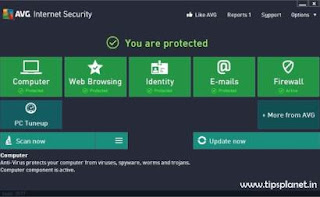
AVG's updates for 2013 look to the future while struggling to overcome the problems of the past. There's a new interface optimized for Windows 8 that really does make the suite easier to use, and the suite once again tackles its lengthy installation procedure.
AVG Anti-Virus Free Edition is trusted antivirus and antispyware protection for Windows available to download for free. In addition, the new included LinkScanner Active Surf-Shield checks web pages for threats at the only time that matters - when you're about to click that link.
Download : [AVG Antivirus Free Edition x64-bit] & [AVG Antivirus Free Editon x32-bit]
4. Avast Antivirus

avast! Free Antivirus represents the best free antivirus protection currently available on the market. This edition is FREE OF CHARGE for non-commercial & home use. Its features include:
Download : [avast! Antivirus Free Edition]
5. Windows Defender

Windows Defender is software that helps protect your computer against pop-ups, slow performance, and security threats caused by spyware and other unwanted software by detecting and removing known spyware from your computer. Windows Defender features Real-Time Protection, a monitoring system that recommends actions against spyware when it's detected, minimizes interruptions, and helps you stay productive.
Download : [Windows Defender]
Note : Download Link are added on 1-03-2013 :)
Like Us On Facebook and stay updated with latest tips and tricks.
Must See : Windows 8 Keyboard Shortcuts You Must Know
To secure your Windows 8 OS against any form of threat, malware etc you need to have an active Antivirus Software. Presently, there are hundreds of antivirus programs for Windows 8 available in market, some of them are free while some are paid. So, today I'm going to share Top 5 Antivirus Software for Windows 8 that are free to download.
1. Bitdefender Antivirus Plus

Bitdefender Antivirus Plus solutions provide state-of-the-art, proactive protection from e-threats, including online banking attacks. Bitdefender Antivirus Plus is Windows 8 Certified and is the best antivirus software. Bitdefender Antivirus Plus is famous for its faster detection and removal. Bitdefender 2013 takes “scheduled scanning” to a whole new level, as the scanning only takes place when your system is idle.
Download : [Bitdefender Antivirus Plus 2013]
2. Kaspersky

Kaspersky is another awesome antivirus software for Windows 8. Kaspersky anti-virus protects you from the Phishing and Malware sites that you wouldn't otherwise know were attempting to steal from you.
At the same time, the Kaspersky Security Network allows your computer to report when it discovers a threat that hasn't been seen before. Kaspersky Antivirus features include :
- Protects from viruses, Trojans, worms, spyware, adware
- Scans files, email, and internet traffic
- Analyzes and closes Internet Explorer vulnerabilities
- Blocks all types of keyloggers
- Automatic Database Updates
Download : [Kaspersky Antivirus]
3. AVG Antivirus

AVG's updates for 2013 look to the future while struggling to overcome the problems of the past. There's a new interface optimized for Windows 8 that really does make the suite easier to use, and the suite once again tackles its lengthy installation procedure.
AVG Anti-Virus Free Edition is trusted antivirus and antispyware protection for Windows available to download for free. In addition, the new included LinkScanner Active Surf-Shield checks web pages for threats at the only time that matters - when you're about to click that link.
Download : [AVG Antivirus Free Edition x64-bit] & [AVG Antivirus Free Editon x32-bit]
4. Avast Antivirus
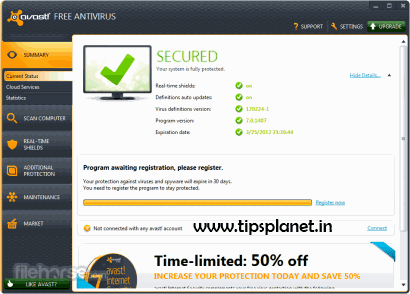
avast! Free Antivirus represents the best free antivirus protection currently available on the market. This edition is FREE OF CHARGE for non-commercial & home use. Its features include:
- Anti-spyware built-in
- Web Shield
- Strong self-protection
Download : [avast! Antivirus Free Edition]
5. Windows Defender
Windows Defender is software that helps protect your computer against pop-ups, slow performance, and security threats caused by spyware and other unwanted software by detecting and removing known spyware from your computer. Windows Defender features Real-Time Protection, a monitoring system that recommends actions against spyware when it's detected, minimizes interruptions, and helps you stay productive.
Download : [Windows Defender]
Note : Download Link are added on 1-03-2013 :)
Like Us On Facebook and stay updated with latest tips and tricks.
Monday, 4 February 2013
0
Monday, 4 February 2013
read more
Windows 8 Keyboard Shortcuts You Must Know
Windows 8 is the latest operating system by Microsoft designed for both PC and tablet users. The touchscreen users can take many advantages of Windows 8 such as the Charms Menu, Metro UI with tiles, and swipes, Microsoft has also done their part to ensure that users who prefer getting around with the keyboard would not be left out.
Must See : How to Get Google Voice Search for PC
Microsoft has integrated new keyboard shortcuts for user for more simplicity and comfort. These Windows 8 keyboard shortcuts make OS faster and easier. And as much fun as touchscreens can be, sometimes you can do more with keyboard shortcuts than you can with swipes. Besides, if you are part of the keyboard generation, shortcuts just come more naturally anyways.

Here are some must know Windows 8 Keyboard Shortcuts :
Shortcut Key Function
Windows Key + D Show Desktop
Windows Key + C Open Charms Menu
Windows Key + F Charms Menu – Search
Windows Key + H Charms Menu – Share
Windows Key + K Charms Menu – Devices
Windows Key + I Charms Menu – Settings
Windows Key + Q Search For Installed Apps
Windows Key + W Search Settings
Windows Key + Tab Cycle through open Modern UI Apps
Windows Key + Shift + Tab Cycle through open Modern UI Apps in reverse order
Windows Key + . Snaps app to the right (split screen multitasking)
Windows Key + Shift + . Snaps app to the left (split screen multitasking)
Windows Key + , Temporarily view desktop
Alt + F4 Quit Modern UI Apps
Windows Key + E Launch Windows Explorer Window
Windows Key + L Lock PC and go to lock screen
Windows Key + T Cycle through icons on taskbar (press Enter to launch app)
Windows Key + X Show Advanced Windows Settings Menu
Windows Key + E Launch Windows Explorer Window
Windows Key + Page Down Moves Start screen and apps to secondary monitor on the right
Windows Key + Page Up Moves Start screen and apps to secondary monitor on the left
Windows Key + M Minimize all Windows
Windows Key + Shift + M Restore all minimized Windows
Windows Key + R Open Run dialog box
Windows Key + Up Arrow Maximize current window
Windows Key + Down Arrow Minimize current window
Windows Key + Left Arrow Maximize current window to left side of the screen
Windows Key + Right Arrow Maximize current window to right side of the screen
Ctrl + Shift + Escape Open Task Manager
Windows Key + Print Screen Takes a Print Screen and saves it to your Pictures folder
Windows Key + Pause Break Display System Properties
Shift + Delete Permanently delete files without sending it to Recycle Bin
Windows Key + F1 Open Windows Help and Support
Windows Key + V Cycle through notifications
Windows Key + Shift + V Cycle through notifications in reverse order
Windows Key + 0 to 9 Launch/show app pinned to taskbar at indicated number
Alt + Enter Display Properties of selected item in File Explorer
Alt + Up Arrow View upper level folder of current folder in File Explorer
Alt + Right Arrow View next folder in File Explorer
Alt + Left Arrow View previous folder in File Explorer
Windows Key + P Choose secondary display modes
Windows Key + U Open Ease of Access Center
Alt + Print Screen Print Screen focused Window only
Windows Key + Spacebar Switch input language and keyboard layout
Windows Key + Shift + Spacebar Switch to previous input language and keyboard layout
Windows Key + Enter Open Narrator
Windows Key + + Zoom in using Magnifier
Windows Key + - Zoom out using Magnifier
Windows Key + Escape Exit Magnifier
Stay Tuned with for More Tips and Tricks :)
Must See : How to Get Google Voice Search for PC
Microsoft has integrated new keyboard shortcuts for user for more simplicity and comfort. These Windows 8 keyboard shortcuts make OS faster and easier. And as much fun as touchscreens can be, sometimes you can do more with keyboard shortcuts than you can with swipes. Besides, if you are part of the keyboard generation, shortcuts just come more naturally anyways.

Here are some must know Windows 8 Keyboard Shortcuts :
Shortcut Key Function
Windows Key + D Show Desktop
Windows Key + C Open Charms Menu
Windows Key + F Charms Menu – Search
Windows Key + H Charms Menu – Share
Windows Key + K Charms Menu – Devices
Windows Key + I Charms Menu – Settings
Windows Key + Q Search For Installed Apps
Windows Key + W Search Settings
Windows Key + Tab Cycle through open Modern UI Apps
Windows Key + Shift + Tab Cycle through open Modern UI Apps in reverse order
Windows Key + . Snaps app to the right (split screen multitasking)
Windows Key + Shift + . Snaps app to the left (split screen multitasking)
Windows Key + , Temporarily view desktop
Alt + F4 Quit Modern UI Apps
Windows Key + E Launch Windows Explorer Window
Windows Key + L Lock PC and go to lock screen
Windows Key + T Cycle through icons on taskbar (press Enter to launch app)
Windows Key + X Show Advanced Windows Settings Menu
Windows Key + E Launch Windows Explorer Window
Windows Key + Page Down Moves Start screen and apps to secondary monitor on the right
Windows Key + Page Up Moves Start screen and apps to secondary monitor on the left
Windows Key + M Minimize all Windows
Windows Key + Shift + M Restore all minimized Windows
Windows Key + R Open Run dialog box
Windows Key + Up Arrow Maximize current window
Windows Key + Down Arrow Minimize current window
Windows Key + Left Arrow Maximize current window to left side of the screen
Windows Key + Right Arrow Maximize current window to right side of the screen
Ctrl + Shift + Escape Open Task Manager
Windows Key + Print Screen Takes a Print Screen and saves it to your Pictures folder
Windows Key + Pause Break Display System Properties
Shift + Delete Permanently delete files without sending it to Recycle Bin
Windows Key + F1 Open Windows Help and Support
Windows Key + V Cycle through notifications
Windows Key + Shift + V Cycle through notifications in reverse order
Windows Key + 0 to 9 Launch/show app pinned to taskbar at indicated number
Alt + Enter Display Properties of selected item in File Explorer
Alt + Up Arrow View upper level folder of current folder in File Explorer
Alt + Right Arrow View next folder in File Explorer
Alt + Left Arrow View previous folder in File Explorer
Windows Key + P Choose secondary display modes
Windows Key + U Open Ease of Access Center
Alt + Print Screen Print Screen focused Window only
Windows Key + Spacebar Switch input language and keyboard layout
Windows Key + Shift + Spacebar Switch to previous input language and keyboard layout
Windows Key + Enter Open Narrator
Windows Key + + Zoom in using Magnifier
Windows Key + - Zoom out using Magnifier
Windows Key + Escape Exit Magnifier
Stay Tuned with for More Tips and Tricks :)
Friday, 18 January 2013
0
Friday, 18 January 2013
read more
How to Give Professional Look to Your Desktop
Hi friends and loyal readers of TipsPlanet. Many of time we want to give a professional look to our desktop but unfortunately it's not a easy task. Today I'm going to show you how to give a professional look to your desktop in simplest way with the help of desktop customization tool RainMeter.
Must See : How to Restore Permanently Deleted Files
Rainmeter displays customizable skins, like memory and battery power, RSS feeds and weather forecasts, right on your desktop. Many skins are even functional: they can record your notes and to-do lists, launch your favorite applications, and control your media player - all in a clean, unobtrusive interface that you can rearrange and customize to your liking. Rainmeter is at once an application and a toolkit. You are only limited by your imagination and creativity.

RainMeter also have features like Google Search Box on the desktop and shortcut icons for the windows applications and have awesome digital clock. Just follow the simple steps to give a professional look to your desktop.
Now you can give a professional look to your desktop. If in case you are facing difficulties, then do leave your message. Like US on Facebook, to keep yourself Updated.
Stay Tuned with Us For More Tips and Tricks :)
Must See : How to Restore Permanently Deleted Files
Rainmeter displays customizable skins, like memory and battery power, RSS feeds and weather forecasts, right on your desktop. Many skins are even functional: they can record your notes and to-do lists, launch your favorite applications, and control your media player - all in a clean, unobtrusive interface that you can rearrange and customize to your liking. Rainmeter is at once an application and a toolkit. You are only limited by your imagination and creativity.

RainMeter also have features like Google Search Box on the desktop and shortcut icons for the windows applications and have awesome digital clock. Just follow the simple steps to give a professional look to your desktop.
Give Professional Look To Your Desktop
- Download and Install RainMeter [Click Here]
- Also Download Omnimo 5.0 Theme [Click Here]
- Extract Theme in document >> rainmeter >> skins
- Open RainMeter and Click on Refresh all
- Now from the left side folders you can choose the gadgets and load it to the desktop
Now you can give a professional look to your desktop. If in case you are facing difficulties, then do leave your message. Like US on Facebook, to keep yourself Updated.
Stay Tuned with Us For More Tips and Tricks :)
Wednesday, 9 January 2013
0
Wednesday, 9 January 2013
read more
How To Restore Permanently Deleted Files?
While doing a work many time situation comes that we lost all our data just because of silly mistake. This happens mostly when we are cleaning our hard disk, deleting unwanted files from PC or Laptop. The cleaning process is necessary and a time taking process, it needs a lot of concentration without distractions. If not done correctly, we can loose our much needed files and without quick action it lost for forever. Mistakenly deleting important files not just takes up your precious time in either looking for the files or re-doing the whole work again it also puts you in to a lot of mental stress.
But nowadays, the technology helps in erasing one’s mistakes if realized at the right time. So, you can restore your deleted and lost files back. In this tutorial i will show you how?
Also See : How to Refresh or Reset Windows 8 PC
1. Make sure that the files are not stored somewhere else and are permanently deleted. That is, they are not even in the Recycle Bin or Trash folders. If they are, they can simply be restored and that would save a lot of hassle.
2. When you are finally sure that you had lost your file/folder, don't panic you can restore it.
3. If you are a windows user, the task of finding something lost or deleted becomes more or less easier for you as the Windows Operating System offer a lots of choices or options of the freeware software that help in finding the deleted file. As per my consideration Undelete Plus is more user friendly and easy to handle.

4. Now after you have selected recovery software, it’s become very simple to restore deleted files. All you need to do is to open Undelete Plus and start scanning where you had stored the file. The result will come up with lots of confusing file names, just keep a lookout for the name and type of the file you have lost.

5. After finding your deleted file, select it and click on Restore by Copying. You are done.
Download : [Undelete Plus]
Comment & Share with Friends :)
Also See : How to Refresh or Reset Windows 8 PC
How to Restore Permanehntly Deleted Files?
1. Make sure that the files are not stored somewhere else and are permanently deleted. That is, they are not even in the Recycle Bin or Trash folders. If they are, they can simply be restored and that would save a lot of hassle.
2. When you are finally sure that you had lost your file/folder, don't panic you can restore it.
3. If you are a windows user, the task of finding something lost or deleted becomes more or less easier for you as the Windows Operating System offer a lots of choices or options of the freeware software that help in finding the deleted file. As per my consideration Undelete Plus is more user friendly and easy to handle.

4. Now after you have selected recovery software, it’s become very simple to restore deleted files. All you need to do is to open Undelete Plus and start scanning where you had stored the file. The result will come up with lots of confusing file names, just keep a lookout for the name and type of the file you have lost.

5. After finding your deleted file, select it and click on Restore by Copying. You are done.
Download : [Undelete Plus]
Comment & Share with Friends :)
Sunday, 21 October 2012
0
Sunday, 21 October 2012
read more
How to Refresh or Reset Windows 8 PC
Telling you how to "refresh" or "reset" your Windows 8 PC before the operating system is even publicly available in its final release form seems odd. But if you think about it, when you buy a new Windows PC, you'll often find a lots of programs you didn't really want like utilities, demo software, game trials and more. So it's a blessing article for new PC users of the new OS which offers a way to clean out everything which is unnecessarily installed.
Also See : Dual Boot Windows 8 and Windows 7
There are actually two new Windows 8 capabilities that perform different kinds of cleanup : one refreshes the system while keeping all of your photos, music, and personal files and the other actually starts you over, returning your computer or tablet to its mint condition. The later, resetting, is also an excellent choice for when you're selling, recycling, or gifting your PC—something friends have often asked me about.
Resetting a Windows PC prior to Windows 8 had been a bit of a chore, so these new Windows 8 tools offer long-term benefits. And if you're not giving away your PC, the refresh tool is a much simpler alternative to re-installing the operating system in the traditional way.
Also See : Download Windows 8 Enterprise for 90 Days
Refresh
Both of the new Windows 8 options clean out the operating system itself, but the "Refresh" choice leaves intact your data—photos, music, videos, and documents, your new-style Windows 8 apps, and your system settings. You'll find this choice by clicking or touching the Settings charm (you display the charms with a swipe in from the left on a touch screen, or by moving the mouse pointer to either of the right corners and moving it down or up). Then choose "Change PC Settings" at the bottom.
When you're on the new-style "PC settings" page (see screenshot below), choose the General section, and scroll the right-side choices down to the eighth choice, "Refresh your PC without affecting your files."

To get started with the refreshing process, click or tap the "Get started" button below the Refresh description. You'll then see a screen like this

This provides more detail about what the operation does. A key thing to know is that the process will remove any desktop apps—only apps obtained from the Windows Store will remain. This message states that you'll be presented with a list of the removed apps on your desktop after the process. This removal makes sense, since desktop programs are the likeliest suspects for clogging your system and haven't passed through the Windows Store vetting process.
Refrence : [ThinkDigit]
Comment & Share with Friends :)
Also See : Dual Boot Windows 8 and Windows 7
There are actually two new Windows 8 capabilities that perform different kinds of cleanup : one refreshes the system while keeping all of your photos, music, and personal files and the other actually starts you over, returning your computer or tablet to its mint condition. The later, resetting, is also an excellent choice for when you're selling, recycling, or gifting your PC—something friends have often asked me about.
Resetting a Windows PC prior to Windows 8 had been a bit of a chore, so these new Windows 8 tools offer long-term benefits. And if you're not giving away your PC, the refresh tool is a much simpler alternative to re-installing the operating system in the traditional way.
Also See : Download Windows 8 Enterprise for 90 Days
Refresh
Both of the new Windows 8 options clean out the operating system itself, but the "Refresh" choice leaves intact your data—photos, music, videos, and documents, your new-style Windows 8 apps, and your system settings. You'll find this choice by clicking or touching the Settings charm (you display the charms with a swipe in from the left on a touch screen, or by moving the mouse pointer to either of the right corners and moving it down or up). Then choose "Change PC Settings" at the bottom.
When you're on the new-style "PC settings" page (see screenshot below), choose the General section, and scroll the right-side choices down to the eighth choice, "Refresh your PC without affecting your files."

To get started with the refreshing process, click or tap the "Get started" button below the Refresh description. You'll then see a screen like this

This provides more detail about what the operation does. A key thing to know is that the process will remove any desktop apps—only apps obtained from the Windows Store will remain. This message states that you'll be presented with a list of the removed apps on your desktop after the process. This removal makes sense, since desktop programs are the likeliest suspects for clogging your system and haven't passed through the Windows Store vetting process.
Refrence : [ThinkDigit]
Comment & Share with Friends :)
Monday, 27 August 2012
0
Monday, 27 August 2012
read more
Download OpenOffice 3.4.1 Latest Version
OpenOffice is a very popular free open source office software. OpenOffice is also credible rival to MS Office, OpenOffice includes powerful applications for making text documents, spreadsheets, presentations, diagrams, and databases, as well as HTML and XML documents. Not only does it let you edit basic documents, such as letters and faxes, it also handles equations and complex and multipart documents with bibliographies, reference tables, and indexes.
Must See : Download Kaspersky Antivirus With License Key
The latest versions of OpenOffice have seen a spurt of growth in the extensions available for the program. These include templates for professional writers, an export tool for bidirectional functionality with Google Docs, blog publishing, and others. Blog publishing assistance especially strikes us as a natural area for word processing to grow toward.

What's New In OpenOffice 3.4.1 ?
Comment & Share with Friends :)
Must See : Download Kaspersky Antivirus With License Key
The latest versions of OpenOffice have seen a spurt of growth in the extensions available for the program. These include templates for professional writers, an export tool for bidirectional functionality with Google Docs, blog publishing, and others. Blog publishing assistance especially strikes us as a natural area for word processing to grow toward.

What's New In OpenOffice 3.4.1 ?
- New support for Khmer, Finnish, British English, Slovenian and Slovak languages. The Dutch, Spanish, Italian and Hungarian translations have also been improved. Along with US English, German, Japanese, Czech, French, Brazilian Portuguese, Russian, Simplified and Traditional Chinese, Gallician and Arabic and many more.
- Support for Microsoft Windows XP up to Windows 8 (32-bit), Linux 32-bit and 64-bit, and Apple Mac OS, including Mountain Lion. New to this release are compatibility fixes for improved operation in Microsoft Windows 8.
- Enhancements in performance and security.
- Fixed almost 69 bugs reported by users.
Comment & Share with Friends :)
Thursday, 2 August 2012
0
Thursday, 2 August 2012
read more
Download Kaspersky Antivirus With License Key
Kaspersky Anti-Virus 2012 is powered by a unique integrated technology for unknown virus searching, based on the principals of second-generation heuristic analysis and also integrated with real-time protection, detection and removal of rootkits.

Kaspersky Anti-Virus inherits all the strengths of the previous version and adds increased speed and efficiency based on new technologies as well as a more convenient user interface.
Did You Missed This : Top 5 Best Antivirus Software of 2012
So, today I'm going to provide Kaspersky Antivirus with license key valid upto 2014. This is how you can get Kaspersky Antivirus.
Download : [Kaspersky Antivirus 2012]
Comment & Share with Friends :)

Kaspersky Anti-Virus inherits all the strengths of the previous version and adds increased speed and efficiency based on new technologies as well as a more convenient user interface.
Did You Missed This : Top 5 Best Antivirus Software of 2012
So, today I'm going to provide Kaspersky Antivirus with license key valid upto 2014. This is how you can get Kaspersky Antivirus.
How to insert Kaspersky Antivirus license key file?
- Disconnect Internet Connection.
- Click “Manage License” From Right Bottom of Kaspersky, Then click “Activate the application”
- Enter Key : AAAAA-AAAAA-AAAAA-AAAA3
- Download License Key File From Below.
- After Downloading Specify the Key Path For Kaspersky Internet Security 2012.
- After Activation Connect the Internet.
Download : [Kaspersky Antivirus 2012]
Comment & Share with Friends :)
0
read more
Download Adobe Reader 10.1.3 For Free
Adobe Reader software is the global standard for electronic document sharing. It is the only PDF file viewer that can open and interact with all PDF documents. Use Adobe Reader to view, search, digitally sign, verify, print, and collaborate on Adobe PDF files. Adobe Reader is a freeware application.

Features Of Adobe Reader 10.1.3 :
Acess to all PDF Files
Export from PDF
Comment & Share with Friends :)

Features Of Adobe Reader 10.1.3 :
Acess to all PDF Files
- View and interact with PDF files that contain a wide variety of content types, including drawings, email messages, spreadsheets, videos, and other multimedia elements.
- Make notes and share your feedback with others by marking up PDF documents using the Sticky Notes and Highlighter tools.
- Take advantage of the security of Protected Mode in Reader, which helps safeguard your computer software and data from malicious code.
- Interact with rich PDF files, including PDF Portfolios, CAD files, and multimedia content. Complete, save, and send Reader enabled forms
Export from PDF
- When a user chooses to convert a PDF to Word or Excel, a dialog offers the user the option to subscribe to the conversion service.
- The Export from PDF service now automatically recognizes text even if the original document was a scanned image.
- The new Adobe Reader is more secure than all previous version.
Comment & Share with Friends :)
Friday, 27 July 2012
1
Friday, 27 July 2012
Download : [SeaTool For Windows]
Method 3 - Disk Check Up
If the above method doesn’t fulfil your requirement or satisfy you, use the DiskCheckUp software to monitor your hard drive. This particular utility will let you know if your hard disk exceeds the maximum threshold designation by its manufacturer.

PassMark DiskCheckup allows the user to monitor the SMART attributes of a particular hard disk drive. SMART (Self-Monitoring Analysis and Reporting Technology) is a feature on a computer's hard disk for providing various monitoring indicators of disk reliability. If SMART is enabled on a hard disk, the system administrator can receive analytical information from the hard drive to determine a possible future failure of the hard drive.
Download : [PassMark DiskCheckup]
Comment & Share with Friends :)
read more
Check Your Hard Drive For Error & Fix It
Is strange sounds coming from your hard drive? Your computer doesn't respond somtime although it is not infected with the virus or any other malware? Then the first thing to do is make a backup of your essential data, because your hard drive have some error and you may lose your important data.
However, there are several ways to know your hard drive’s health condition and look for any error. Doing so helps you in identifying those errors and enables you to take proper action before everything is messed up.
How to Check Your Hard Drive for Errors?
There are three methods to check hard drive for error discussed in detail below.
Method 1 - Using chkdsk.exe
Go to Run > type “chkdsk.exe” (without quotes) or if you want to check errors for a particular drive, then right click on it and choose “Properties” “Tools” tab and click on “Check Now” button. You can automatically choose to fix file system errors and recover bad sectors present on your hard drive.
Method 2 - Use diagnostic tools for testing your hard drive like Seagate SeaTools
SeaTools for Windows can perform several basic tests that can help determine the health of your hard drive. Your available hard drives and tests are easy to see when the program opens and can be ran with just a few clicks of the mouse.

You can test hard drives from any manufacturer and of any type, including PATA, SATA, and SCSI internal drives along with USB and FireWire external drives. To begin, simply download the software from Seagate's site and install in Windows.
SeaTools for DOS can also perform the several basic tests that SeaTools fro Windows can run but it can also run a very useful Acoustic Test. This test can really save you a lot of time during the troubleshooting of a noisy internal component. It will spin the drive down until it's completely idle, making the drive nearly silent. If you no longer hear the strange noise, the hard drive was the culprit!
However, there are several ways to know your hard drive’s health condition and look for any error. Doing so helps you in identifying those errors and enables you to take proper action before everything is messed up.
How to Check Your Hard Drive for Errors?
There are three methods to check hard drive for error discussed in detail below.
Method 1 - Using chkdsk.exe
Go to Run > type “chkdsk.exe” (without quotes) or if you want to check errors for a particular drive, then right click on it and choose “Properties” “Tools” tab and click on “Check Now” button. You can automatically choose to fix file system errors and recover bad sectors present on your hard drive.
Method 2 - Use diagnostic tools for testing your hard drive like Seagate SeaTools
SeaTools for Windows can perform several basic tests that can help determine the health of your hard drive. Your available hard drives and tests are easy to see when the program opens and can be ran with just a few clicks of the mouse.

You can test hard drives from any manufacturer and of any type, including PATA, SATA, and SCSI internal drives along with USB and FireWire external drives. To begin, simply download the software from Seagate's site and install in Windows.
SeaTools for DOS can also perform the several basic tests that SeaTools fro Windows can run but it can also run a very useful Acoustic Test. This test can really save you a lot of time during the troubleshooting of a noisy internal component. It will spin the drive down until it's completely idle, making the drive nearly silent. If you no longer hear the strange noise, the hard drive was the culprit!
Download : [SeaTool For Windows]
Method 3 - Disk Check Up
If the above method doesn’t fulfil your requirement or satisfy you, use the DiskCheckUp software to monitor your hard drive. This particular utility will let you know if your hard disk exceeds the maximum threshold designation by its manufacturer.
PassMark DiskCheckup allows the user to monitor the SMART attributes of a particular hard disk drive. SMART (Self-Monitoring Analysis and Reporting Technology) is a feature on a computer's hard disk for providing various monitoring indicators of disk reliability. If SMART is enabled on a hard disk, the system administrator can receive analytical information from the hard drive to determine a possible future failure of the hard drive.
Download : [PassMark DiskCheckup]
Comment & Share with Friends :)
Thursday, 26 July 2012
0
Thursday, 26 July 2012
read more
Download Songs From Online Radio Stations via RadioZilla
You can find many online radio (FM) stations where you can listen to songs of different languages. What if you want to download particular song that you liked while listening to one of such online radio stations? Here comes RadioZilla, RadioZilla is a smart and powerful tool that lets you listen to thousands of the world's radio stations. With this great tool, you can find, listen and download unlimited music, sports and talk radio. RadioZilla lets you easily listen and record radios at the same time.
RadioZilla also provides a lot more information about listening track: track parameters, name, stream name, stream type, bitrate, album art.

RadioZilla can automatically saves every new track in a separate file with the corresponding file name or it can saves only favorite songs, just click save button while listening to a track you can get it full even if you have started recording from the middle.
RadioZilla is available for both Windows and Mac.
Download : [RadioZilla]
Comment & Share with Friends :)
RadioZilla also provides a lot more information about listening track: track parameters, name, stream name, stream type, bitrate, album art.

RadioZilla can automatically saves every new track in a separate file with the corresponding file name or it can saves only favorite songs, just click save button while listening to a track you can get it full even if you have started recording from the middle.
RadioZilla is available for both Windows and Mac.
Download : [RadioZilla]
Comment & Share with Friends :)
Monday, 23 July 2012
0
Monday, 23 July 2012
read more
How to Re-Enable Disabled Services After Virus Attacks
If you are using PC, then it is well known fact that you are familiar with Viruses. Viruses are the common name of the deadly creatures developed to destroy the whole PC, well obviously I don’t know what the motive behind developing such creatures but still we have to be ready for all the consequences and hence the main thing which comes in front of us after any kind of virus attack is many services get disabled like task manager and then control start getting out.
There are manual ways which you can make to run all disabled services run again but that includes some more depth knowledge but if you are just a simple internet surfer and music lover and want a simple solution for this stuff then comes the role of Re-Enable Tool developed by Tangosoft which is to re-enable all disabled services of windows.

The main services of Re-Enable Tool includes the Registry Editor, Task Manager, CMD Console and many more option as displayed in image.
Download : [Re-Enable Tool]
Re-Enable Tool {Video Tutorial}
Comment & Share with Friends :)
There are manual ways which you can make to run all disabled services run again but that includes some more depth knowledge but if you are just a simple internet surfer and music lover and want a simple solution for this stuff then comes the role of Re-Enable Tool developed by Tangosoft which is to re-enable all disabled services of windows.

The main services of Re-Enable Tool includes the Registry Editor, Task Manager, CMD Console and many more option as displayed in image.
Download : [Re-Enable Tool]
Re-Enable Tool {Video Tutorial}
Comment & Share with Friends :)
0
read more
How to Crack IDM & Update It For Free
Almost every net user is very much familiar to IDM i.e., Internet Download Manager the fastest downloading client for downloading files from Internet with great speed. But the main problem with IDM is it's not available for free you have pay some dollar to the developers to get license. Although a lots of crack and patches are available over the Internet to crack IDM, you notice that you cannot update IDM with latest release, if you try to update it gives error and sometime your cracked version of IDM may stop working.
Did You Missed This : How to Download Torrent File From IDM
With IDM Cracker Tool you can easily crack IDM and update if for free you won't get any error.

Comment & Share with Friends :)
Did You Missed This : How to Download Torrent File From IDM
With IDM Cracker Tool you can easily crack IDM and update if for free you won't get any error.

How to Crack IDM & Update
- Download [IDM Cracker Tool]
- After downloading open it and make sure you have already installed latest version IDM on your PC, well if its not latest than you just need to click on Update in this tool and than go to your IDM and choose check for updates and update it.
- Now after you have updated it, you just now need to crack it up so that its again full version and you can use it for lifetime.
- So now just again go to IDM Cracker Tool and than click on the Start option and it will patch your IDM. Now enjoy unlimited downloading.
Comment & Share with Friends :)
Tuesday, 17 July 2012
0
Tuesday, 17 July 2012
read more
Download Microsoft Office 2013 Customer Preview
Today, Microsoft has finally released customer preview of Microsoft Office 2013 or Office 365 Preview. This new Microsoft Office 2013 has been made for both touchscreens and traditional desktops. Generally all the features of Microsoft Office 2013 has been made by taking Windows 8 under consideration. The suite will work on both Windows 7 and Windows 8. Sorry, for Windows XP user as new Office 2013 is not compatible with XP :( .

This Beta version of Microsoft Office 2013 is well known as "Customer Preview" or "Office 365 Preview". Microsoft has already promised "touch everywhere" stylus control, and of course traditional keyboard and mouse input. In addition to the traditional suite, ARM-based Windows 8 devices will include Office Home and Student 2013 RT containing Word, Excel, PowerPoint, and OneNote.
Download : [Microsoft Office 2013]
Comment & Share with Friends :)

This Beta version of Microsoft Office 2013 is well known as "Customer Preview" or "Office 365 Preview". Microsoft has already promised "touch everywhere" stylus control, and of course traditional keyboard and mouse input. In addition to the traditional suite, ARM-based Windows 8 devices will include Office Home and Student 2013 RT containing Word, Excel, PowerPoint, and OneNote.
 |
| PowerPoint 2013 Preview |
 |
| Excel 2013 Preview |
Download : [Microsoft Office 2013]
Comment & Share with Friends :)
1
Dowload: [Microsoft Security Essential]
Did You Missed This : Download Best Antivirus Free - Microsoft Security Essential
#2 Avast! 7
 This is the second best free antivirus software because of a clear user interface and effective malware uprooting function. Using Firewall, Real-Time Shields and a very good Browser Protection, Avast safeguards all that your hold precious in your PC. You can even install it in ‘compatible mode’ while another antivirus program is in your PC without disrupting either. It has an ‘AutoSandbox’ tool which will run all suspicious programs through Avast first in order to keep your PC safe if it turns out to be a viral program.
Download : [Avast! 7]
#3 AVG Antivirus 2012
 AVG Antivirus is one of the oldest softwares of its kind and has a very loyal user base. It relies heavily on resource usage, but if your PC has a good configuration, it is the ideal antivirus software. One of its biggest pros is that it is updated very frequently. The 2012 edition has condensed the earlier version’s ten component icons into six, but has added three new icons to display AVG’s other products. It fares particularly well in malware blocking and malware removal, lobbing it into the list of best 5 antiviruses of 2012.
Download : [AVG Antivirus Free Edition 2012]
Did You Missed This : AVG 2012 Antivirus Free Download
#4 Avira Antivirus 2012
 One of the best antivirus softwares, Avira is very popular among users for its intelligent and intuitive program. Avira AntiVir Personal comes with both free and paid versions. The free Avira antivirus software eliminates rootkits, worms and dialers. The Avira Antivirus Premium 2012 is for them who communicates with emails most of the time. Avira Antivirus Premium offers powerful anti-phishing property. The best thing is that you can use the paid version for free for 30 days. It has anti-phishing, WebGuard protection that warns you against malicious websites, anti drive that keeps you from downloading viruses during browsing, mail guard and AntiVir ProActive that detects threats by studying behavior patterns.
Download : [Avira Antivirus 2012]
#5 Panda Cloud Antivirus
 Panda Cloud Antivirus is among the best top 5 free antivirus software programs available for personal use. Panda optimize scan is light, soft and it gets updated automatically through its 'cloud technique' so you are least bothered about updating it and it keeps providing security to your system without you even noticing it. But it has this feature of the automatic quarantine which makes it a little troublesome. Over all Panda Cloud antivirus is appreciated for its many security features, including lightness and 'Cloud scanning’ techniques. In fact, Panda Cloud is popular, widely used,very strong, and protectively very effective free anti-virus program. Panda Cloud Antivirus program is ranked 4th by PC World magazine.
Download : [Panda Cloud Antivirus]
Comment & Share with Friends :)
read more
Top 5 Best Antivirus Softwares of 2012
Today, an unprotected computer isn’t just vulnerable, it’s probably already infected. New viruses, spyware, trojans, worms and other malware debut every day and affect your PC. With so much viruses, spyware, and other malwares are present in every corner of the internet, you must not settle for anything but the best antivirus software for your computer. So take a look at some of the best antivirus softwares of 2012 that will ensure that you’ll carryout your daily tasks in a secure environment and with a peace of mind.
#1 Microsoft Security Essential 2012
 Microsoft Security Essentials(MSE) is the best free antivirus software around the Internet of year 2012 for PC and Windows operated computer systems. Microsoft Security Essentials is a top best anti virus program in terms of security, ease of use, lightness, updates and support.Microsoft Security Essential exclusively made for Windows.. Microsoft Security Essentials is an award winning best antivirus and its directly from Microsoft itself and probably the best antivirus for your PC, if you are using Windows.You can freely download it from Microsoft’s website and the best thing is that it automatically gets updated with the new advancements in the over all features of this antivirus software. You should keep your firewall security on to get the maximum security benefits from Microsoft Security Essentials antivirus software. And make sure that you are using Genuine Windows to get it free from Microsoft.

Dowload: [Microsoft Security Essential]
Did You Missed This : Download Best Antivirus Free - Microsoft Security Essential
#2 Avast! 7

Download : [Avast! 7]
#3 AVG Antivirus 2012

Download : [AVG Antivirus Free Edition 2012]
Did You Missed This : AVG 2012 Antivirus Free Download
#4 Avira Antivirus 2012

Download : [Avira Antivirus 2012]
#5 Panda Cloud Antivirus

Download : [Panda Cloud Antivirus]
Comment & Share with Friends :)
Monday, 16 July 2012
0
Monday, 16 July 2012
read more
Free Genuine License Key of Antivirus by Facebook
Are you tired of being cracking antivirus for better use? Don't worry here is something for the user. Facebook is trying to improve security of it's user. For that only facebook is providing free and genuine keys for antivirus mentioned below :
1. McAfee
2. Microsoft Security Essential
3. Norton Antivirus
4. Sophos Anti-Virus For MAC Home Edition
5. Trend Micro Internet Security
The license key by facebook are valid only for 6 months and will work like genuine antivirus to protect your PC from harmful threats.

"Facebook Antivirus Marketplace" is where you can download these antiviruses without any cost. There you will get Microsoft Security Essential, Norton Antivirus, McAfee Antivirus, Trend Micro Internet Security and Sophos Antivirus for MAC Home Edition all free for 6 month.
You are only allowed to download 1 Antivirus, so choose the good considering PC Configuration. Just choose your Antivirus and click on Learn more. After that it can ask you to Log in to your account, just do that and your download will start.
Link : [ Facebook Antivirus Marketplace]
Did You Missed This : Top 5 Best Antivirus Softwares of 2012
Comment & Share with Friends :)
1. McAfee
2. Microsoft Security Essential
3. Norton Antivirus
4. Sophos Anti-Virus For MAC Home Edition
5. Trend Micro Internet Security
The license key by facebook are valid only for 6 months and will work like genuine antivirus to protect your PC from harmful threats.

"Facebook Antivirus Marketplace" is where you can download these antiviruses without any cost. There you will get Microsoft Security Essential, Norton Antivirus, McAfee Antivirus, Trend Micro Internet Security and Sophos Antivirus for MAC Home Edition all free for 6 month.
You are only allowed to download 1 Antivirus, so choose the good considering PC Configuration. Just choose your Antivirus and click on Learn more. After that it can ask you to Log in to your account, just do that and your download will start.
Link : [ Facebook Antivirus Marketplace]
Did You Missed This : Top 5 Best Antivirus Softwares of 2012
Comment & Share with Friends :)
Thursday, 12 July 2012
0
Thursday, 12 July 2012
read more
How to Change Brand Logo In Windows 7
This time I'll try to share tutorial on How To Change Brand Logo Windows In 7, for those who are bored with Brand Logo Windows 7 this way is quite suitable for you.
What is Brand Logo Windows 7? You must be wondering Brand Logo Windows 7, It is a brand or logo that when you log on or when booting Windows 7 on your computer, there is writing or logo which comes with Windows 7.
At this time Tutoarial Brand Logo Windows 7 it can be replaced or you can treat with your heart's content. You can also replace the logo with your logo "example: with your name"
Note: Must be PNG image file format.
To do this you need a software i.e., Windows 7 Logon Branding Changer installed in your laptop or desktop. With this software you can easily replace Windows 7 Ultimate with your heart's content. If you are not clear, you can see the picture below, which was given the red arrows were named Brand Logo Windows 7 it can be easily change.


Well if you want design and modify your Windows 7, please download Software Windows 7 Branding Logon Changer below for free.
Comment & Share with Friends :)
What is Brand Logo Windows 7? You must be wondering Brand Logo Windows 7, It is a brand or logo that when you log on or when booting Windows 7 on your computer, there is writing or logo which comes with Windows 7.
At this time Tutoarial Brand Logo Windows 7 it can be replaced or you can treat with your heart's content. You can also replace the logo with your logo "example: with your name"
Note: Must be PNG image file format.
To do this you need a software i.e., Windows 7 Logon Branding Changer installed in your laptop or desktop. With this software you can easily replace Windows 7 Ultimate with your heart's content. If you are not clear, you can see the picture below, which was given the red arrows were named Brand Logo Windows 7 it can be easily change.
Well if you want design and modify your Windows 7, please download Software Windows 7 Branding Logon Changer below for free.
Download : [CLICK HERE]
Comment & Share with Friends :)
Wednesday, 11 July 2012
0
Wednesday, 11 July 2012
Microsoft Security Essentials (MSE) is an Antivirus computer program that provides protection against different types of malware such as computer viruses, spyware, rootkits and Trojan horses.
Microsoft Security Essentials is built upon the same foundation as other Microsoft Antimalware products, all use the same virus definitions and antimalware engine known as Microsoft Malware Protection Engine. Microsoft Security Essentials, however, lacks the personal firewall or centralized management features found in OneCare or Forefront Endpoint Protection (FEP).
Microsoft Security Essentials real-time protection feature constantly monitors file and program activities on the computer, scanning new files as they are downloaded or created. Upon spotting a threat, Microsoft Security Essentials disables the threat and prompts for user input. If no response is received in ten minutes, then the suspected threat is handled according to the default actions defined in the Settings section of the antivirus product. Depending on the settings, Microsoft Security Essentials may create System Restore points before removing the detected malware.As a part of real-time protection, Microsoft Security Essentials reports all suspicious behaviors of monitored programs to Microsoft SpyNet, a web-based service. If the report matches a newly discovered malware threat with an unreleased virus definition, Microsoft Security Essentials will download this definition to remove the threat.
NOTE : To install this Antivirus you need genuine copy of windows. If you do not have genuine copy of windows. Then see post below (How to Make Windows ....)
Comment & Share with Friends :)
read more
Download Best Antivirus Free - Microsoft Security Essential
Microsoft Security Essentials (MSE) is an Antivirus computer program that provides protection against different types of malware such as computer viruses, spyware, rootkits and Trojan horses.Microsoft Security Essentials is built upon the same foundation as other Microsoft Antimalware products, all use the same virus definitions and antimalware engine known as Microsoft Malware Protection Engine. Microsoft Security Essentials, however, lacks the personal firewall or centralized management features found in OneCare or Forefront Endpoint Protection (FEP).
Microsoft Security Essentials real-time protection feature constantly monitors file and program activities on the computer, scanning new files as they are downloaded or created. Upon spotting a threat, Microsoft Security Essentials disables the threat and prompts for user input. If no response is received in ten minutes, then the suspected threat is handled according to the default actions defined in the Settings section of the antivirus product. Depending on the settings, Microsoft Security Essentials may create System Restore points before removing the detected malware.As a part of real-time protection, Microsoft Security Essentials reports all suspicious behaviors of monitored programs to Microsoft SpyNet, a web-based service. If the report matches a newly discovered malware threat with an unreleased virus definition, Microsoft Security Essentials will download this definition to remove the threat.
NOTE : To install this Antivirus you need genuine copy of windows. If you do not have genuine copy of windows. Then see post below (How to Make Windows ....)
How to Make Windows XP & Vista Genuine in 2 Minutes
Download : [Microsoft Security Essential]
Comment & Share with Friends :)
0
 Hey Friends !! your most awaited problem has been solved.
I know that most of you guys out there are using cracked version of windows. As a result you are unable to download the latest updates from microsoft. Now you can dowload unlimited updates from microsoft without any worry.
I have received several request for a trick to make Windows OS genuine, but I was was unable to do this till today but finally i have found the solution to the problem.
Here is an software which can make your OS genuine just download the software below link.
Tried and tested by me personally.
NOTE : This activator makes your OS copy genuine but only for XP 32/64 Bit version and all Vista version.
Enjoy the unlimited updates for your windows from Microsoft.
Download: [Link]
Password: tipsplanet
Comment & Share with Friends.
read more
How to Make Windows XP & Vista Genuine in 2 Minutes

I know that most of you guys out there are using cracked version of windows. As a result you are unable to download the latest updates from microsoft. Now you can dowload unlimited updates from microsoft without any worry.
I have received several request for a trick to make Windows OS genuine, but I was was unable to do this till today but finally i have found the solution to the problem.
Here is an software which can make your OS genuine just download the software below link.
Tried and tested by me personally.
NOTE : This activator makes your OS copy genuine but only for XP 32/64 Bit version and all Vista version.
Enjoy the unlimited updates for your windows from Microsoft.
Download: [Link]
Password: tipsplanet
Comment & Share with Friends.
Subscribe to:
Posts (Atom)


